

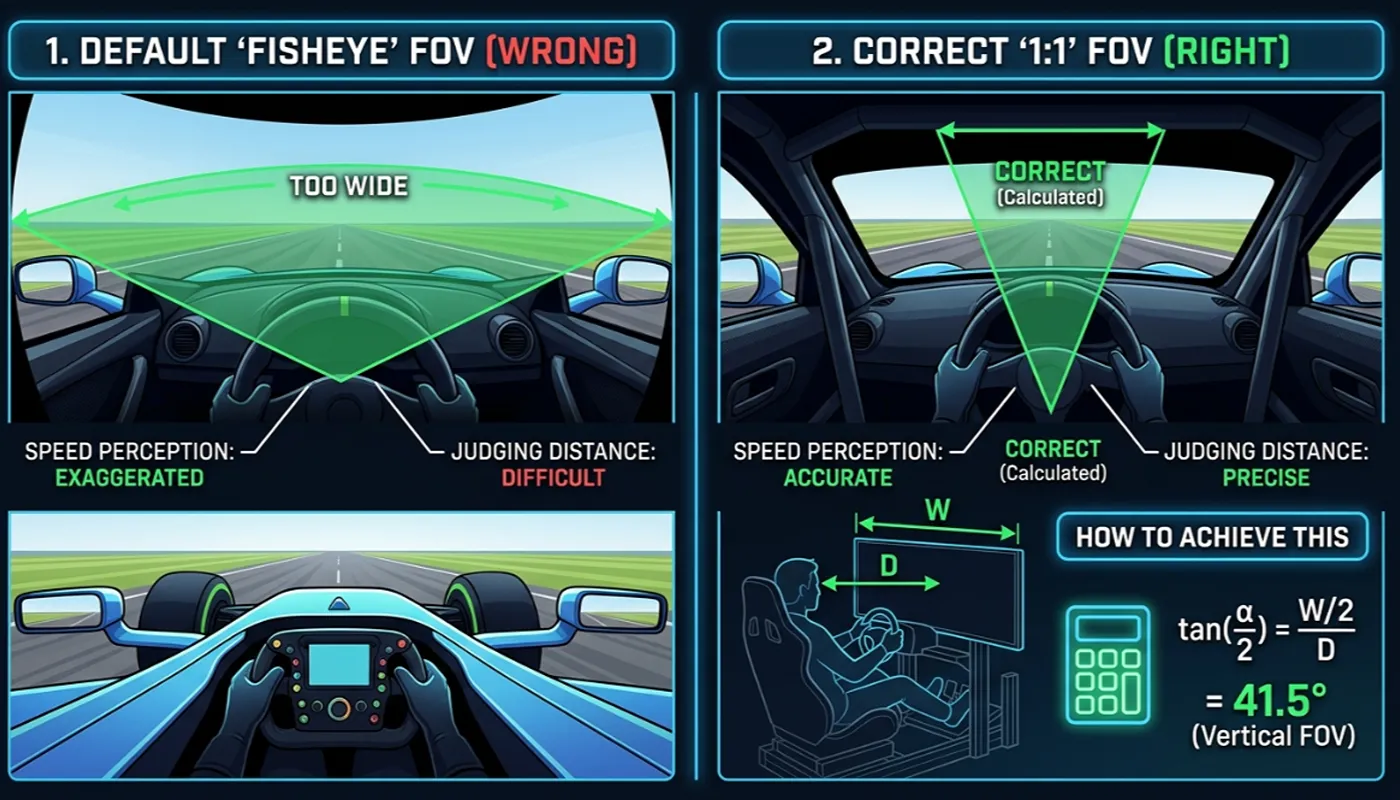
Knowing how to calculate FOV for sim racing is the single most overlooked step in building a realistic racing setup, yet it changes how well you judge braking points and corner entry more than almost any other setting.
This guide will delve into what FOV means, why it’s so important in racing games, and how a sim racing FOV calculator can help you achieve the perfect setup for your monitor configuration.
Understanding FOV in Sim Racing
Field of view is one of the most misunderstood settings in sim racing, yet it changes your driving more than most graphics options combined.
This section covers what FOV actually means, why it matters for competitive racing, and how the “correct” value differs from what simply feels good.
Once you understand these basics, using the calculator to dial in your own setup becomes much easier.
What is FOV?
Field of View, often referred to simply as FOV, represents the extent of the observable world seen through a virtual camera in sim racing games. It’s a fundamental graphics setting that determines how much of the track and car interior you can see on your monitor.
A higher FOV value means you see more of the environment, while a lower FOV narrows your perspective. This setting significantly impacts your perception of speed and distance, which are vital for competitive sim racers.
Why FOV Matters in Racing Games
The correct FOV setting is paramount for achieving a realistic and immersive racing experience in titles like iRacing, Assetto Corsa, ACC, F1, Project Cars, and WRC.
It directly influences your ability to accurately judge braking points, apexes, and the proximity of other cars, which can dramatically improve lap times and overall performance. A poorly judged setting can cost you precious seconds per lap over a full race distance.
An improperly set FOV can lead to a distorted sense of speed, making it harder to react effectively and leading to a less enjoyable sim racing experience, particularly in AMS2.
Types of FOV: Correct vs. Perfect
While a “correct FOV” is the geometrically correct value calculated from real-world dimensions and your monitor setup, the “perfect FOV” can sometimes be a blend of this accurate calculation and personal preference for ultimate immersion.
A sim racing FOV calculator aims to provide the mathematically correct FOV value based on your screen size, aspect ratio, distance from your eyes, and total width, especially important for triple monitor setups.
However, some sim racers might slightly adjust this value to better suit their individual racing style or to maximize the feeling of speed and immersion.
Using the Sim Racing FOV Calculator
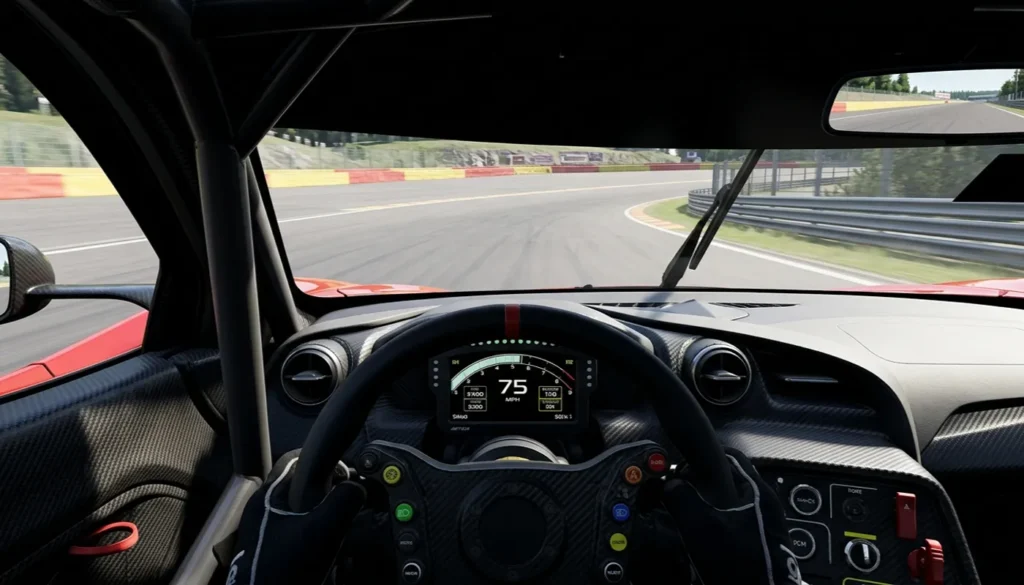
This section walks through exactly how to calculate FOV for sim racing using the calculator, what inputs it needs, and the mistakes that trip up most sim racers.
If you want a closer look at how the math behind it works, check out our breakdown of the FOV calculation process. Getting these inputs right the first time saves you from guessing and re-adjusting settings mid-race.
How to Calculate FOV for Your Sim Racing Setup
Achieving the correct FOV for your sim racing setup involves a precise calculation that takes into account several critical factors, including diagonal measurements and monitor curvature.
The sim racing FOV calculator is an invaluable tool that helps sim racers determine the perfect vfov value based on their specific monitor size and setup.
This calculation ensures that the in-game perspective accurately reflects a real-world view, enhancing immersion and improving driving performance in racing games such as iRacing and Assetto Corsa, particularly when considering the curve radius of the track.
Without a proper FOV, judging distances and speeds becomes significantly more challenging, diminishing the overall racing experience and affecting spatial awareness.
Step-by-Step Guide to Using the FOV Calculator
To effectively use a FOV calculator, you’ll first need to accurately measure the distance from your eyes to your monitor. Next, input your screen size, aspect ratio, diagonal measurement, and if applicable, the bezel thickness for a triple monitor setup into the calculator.
For those with three monitors, specify the angle of the side monitors to ensure the FOV calculator provides the most accurate and immersive field of view.
These inputs allow the calculator to determine the optimal FOV setting, providing the right FOV values for a truly realistic and immersive racing experience in sims like ACC and F1.
Common Mistakes When Calculating FOV
Many sim racers make common errors when attempting to calculate FOV, often leading to a distorted or less immersive sim racing experience due to improper game settings.
One frequent mistake is incorrectly measuring the viewing distance from your eyes to the monitor, which is a crucial input for the FOV calculator. Another pitfall is neglecting to account for bezel width in a triple-screen setup, which can significantly skew the calculated FOV value and affect the overall game settings.
Furthermore, some users might enter an incorrect aspect ratio or ignore the angle of their side monitors, particularly with curved monitors or a 1000R setup, leading to a sub-optimal field of view that hinders proper FOV help and accurate braking points.
Setting Up Your Racing Simulator
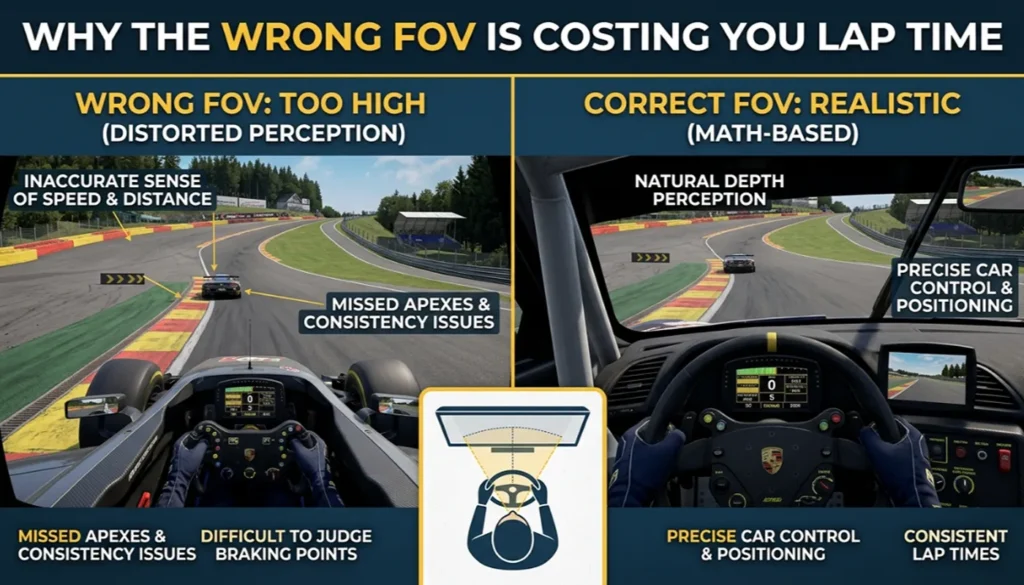
Before you can trust any FOV number, your physical setup needs to be measured correctly.
This section covers how to measure your seating distance, choose between single and triple screens, and adjust in-game camera settings for maximum immersion.
If you still have questions after this, our FOV FAQ covers the most common setup issues.
Measuring Your Setup for Accurate FOV
Accurately measuring your sim racing setup using a tape measure is the foundational step for achieving the correct FOV and an immersive racing experience, particularly when considering monitor size and ergonomics.
The distance from your eyes to your monitor is a critical factor in ergonomics, directly influencing the field of view calculations.
For a single monitor, such as a 27-inch display, measure from your eye to the screen; for a triple monitor setup, measure to the center monitor.
This precise measurement, along with your screen size and aspect ratio, feeds into the FOV calculator, ensuring the generated FOV value provides a realistic perspective within racing games like iRacing and Assetto Corsa.
Display Settings: Monitors vs. Triple Screens
The choice between a single flat screen or a triple-screen setup, or even VR, significantly impacts your ideal FOV setting and overall sim racing immersion.
A single monitor setup will have a narrower field of view, while a triple monitor setup dramatically expands your peripheral vision, enhancing spatial awareness and making the sim racing experience more realistic.
When using three monitors, carefully adjust the angle of your side monitors and account for bezels in the FOV calculator to enhance spatial awareness.
This ensures a seamless transition across screens and a truly immersive triple-screen setup, providing the right FOV values for racing games like F1 and ACC.
Optimizing Camera Settings for Immersion
Beyond the correct FOV, optimizing in-game camera settings for sim racing is essential for maximizing immersion and achieving the perfect field of view in your simulator.
Many racing games offer various camera views, from cockpit to bumper cam. For the most realistic and immersive racing experience in AMS2, the cockpit view combined with a properly calibrated FOV setting is usually preferred.
Adjusting the seat position within the game can also fine-tune your perspective, allowing you to align your virtual eye point with your actual eye position relative to the screen.
This synergy between FOV and camera adjustments enhances your perception of speed and braking points, contributing to a perfect field of view in your racing simulations.
Adjusting FOV in Popular Racing Games
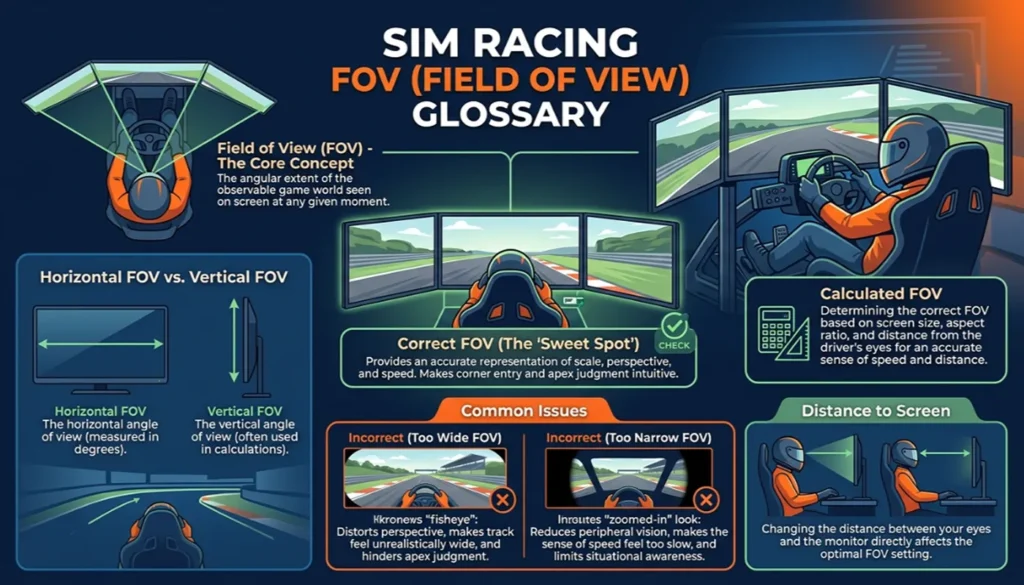
Every racing sim handles FOV settings a little differently, from where the option lives in the menu to how it interacts with camera view.
This section walks through the specifics for iRacing, Assetto Corsa, and curved monitor setups. For a full breakdown of recommended settings across more titles, see our FOV settings by game guide.
How to Set FOV in iRacing
Setting the FOV in iRacing for an optimal racing experience involves utilizing the in-game FOV settings, often guided by an external sim racing FOV calculator that considers the curve radius of the track.
iRacing provides robust options to adjust your field of view, allowing sim racers to input their calculated vfov value, ensuring the correct FOV for their monitor setup.
You’ll typically find these adjustments within the graphics or display settings, where you can input your screen size, distance from your eyes, and, for a triple monitor setup, the angle of your side monitors and bezel width. This precision helps in achieving the perfect FOV for competitive and immersive racing.
Configuring FOV in Assetto Corsa
In Assetto Corsa, configuring the FOV is crucial for an immersive and realistic racing experience, especially when using a triple monitor setup.
The game offers various display settings where sim racers can adjust their field of view, although often requiring a manual input based on calculations from a FOV calculator.
You’ll need to consider your monitor’s aspect ratio, screen size, and the viewing distance from your eyes to determine the correct FOV.
For a triple-screen configuration, factoring in the angle of the side monitors and bezel thickness is paramount to ensure a seamless and accurate visual representation on all three monitors, enhancing total width.
FOV Settings for Curved Monitors
For sim racers utilizing curved monitors, especially those with a 1000R curvature, specific FOV settings are necessary to achieve the correct FOV and optimal immersion in simracing.
While a standard sim racing FOV calculator provides a solid baseline, the curvature of the monitor, such as 1800R, can subtly alter the perceived field of view.
It’s often recommended to slightly adjust the calculated FOV value to compensate for the wrap-around effect, providing a more natural perspective and improving distance judgment.
Whether using a single curved monitor or a triple-screen curved setup, experimenting with minor adjustments around the default FOV can significantly enhance the realistic and immersive racing experience in racing games like ACC and Project Cars.


