
Getting your FOV settings right is one of the most overlooked ways to improve how a PC game feels, whether you’re chasing a competitive edge or just want to sit comfortably for hours. Delve into the critical aspect of Field of View (FOV) in PC gaming.
This guide will help you understand, optimize, and personalize your FOV setting for a superior and more immersive gaming experience, ensuring you get the most out of every virtual world.
Understanding Field of View (FOV)
Before diving into specific FOV settings, it’s worth understanding what FOV actually controls on screen. This section breaks down the basics and why the setting matters so much for PC gamers.
What is Field of View?
Field of View, often abbreviated as FOV, refers to the extent of the observable game world visible on your screen at any given moment. It dictates how much of the virtual environment the player can see in a video game, essentially defining the peripheral vision within the game world.
This crucial setting is typically measured in degrees, representing either the horizontal or vertical angular width of the scene rendered on your monitor. In practice, this is usually described as either the horizontal field of view or the vertical field of view, depending on how a game reports it.
Many PC games allow you to adjust this setting through an in-game slider, giving players the flexibility to customize their viewing experience beyond the developer’s default. Understanding your current FOV setting is the first step in optimizing your gaming setup.
Our glossary of FOV terms covers this vocabulary in more depth.
Importance of FOV in Gaming
The importance of FOV in gaming cannot be overstated, as it fundamentally impacts nearly every aspect of your gaming experience. A well-chosen FOV setting can significantly enhance immersion, reduce motion sickness, and even provide a competitive advantage.
For PC gamers, especially those with ultrawide monitors or a triple monitor setup, adjusting the FOV setting is vital to ensure the game world renders correctly and naturally across their wider screen. While console games often have a fixed or limited FOV, PC games typically offer a wider range of options, allowing players to tailor their field of vision to their specific monitor setup and personal preference.
A lower FOV might feel restrictive, while a higher FOV can offer a broader perspective, proving beneficial in fast-paced titles.
How FOV Affects Gameplay Experience
The chosen FOV setting profoundly affects your gameplay experience, influencing everything from visual perception to situational awareness. A higher FOV can provide a wider field of vision, allowing you to see more of the environment and potentially spot enemies or objectives that would be outside your view with a lower FOV.
This is particularly advantageous in competitive shooters where peripheral vision is key. Conversely, a lower FOV creates a more zoomed-in perspective, which can be beneficial for precision aiming in certain sim games or for a more cinematic feel, but it can also induce motion sickness in some players.
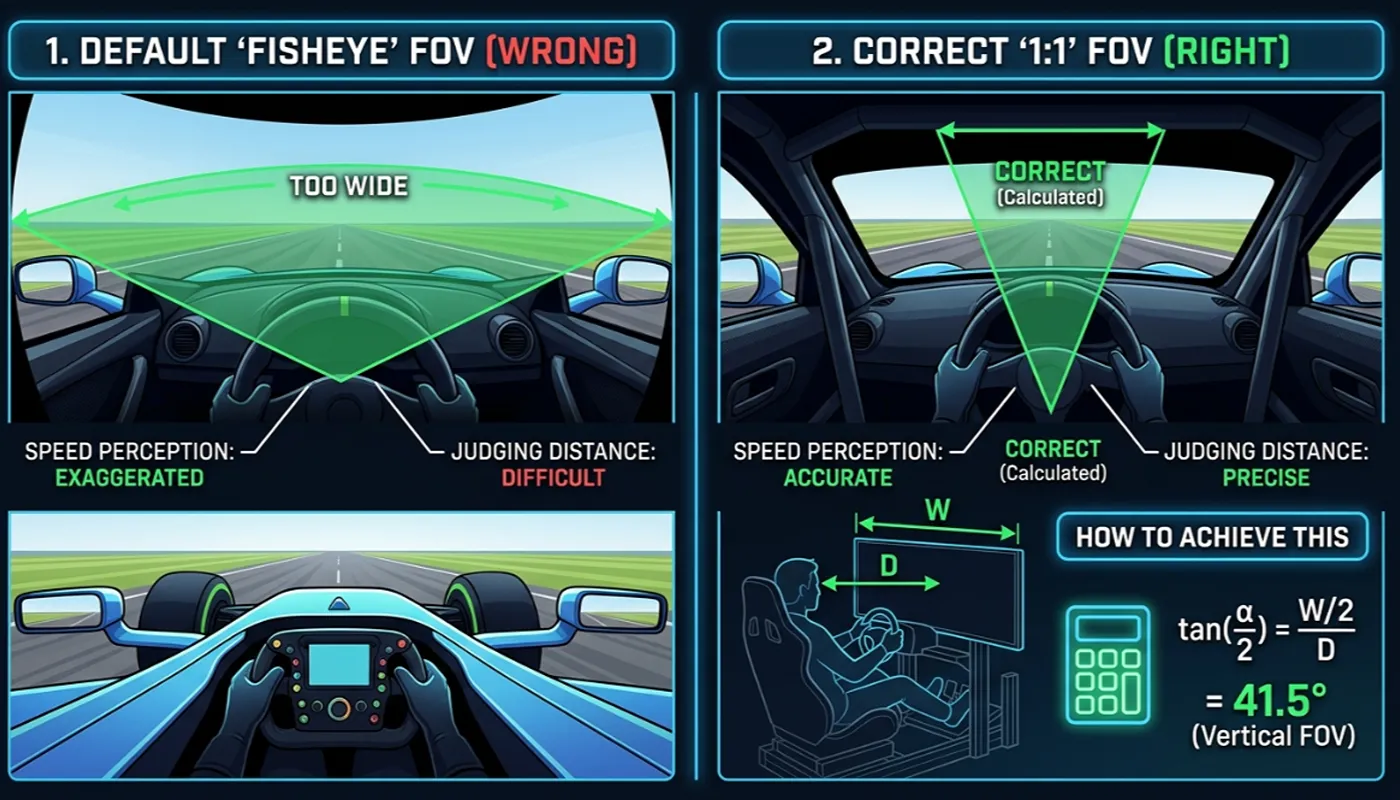
Adjusting your field of view can dramatically change how you perceive speed, distance, and the scale of the game world, making it a critical graphic setting to master for optimal gaming on your PC.
Adjusting Your FOV Setting
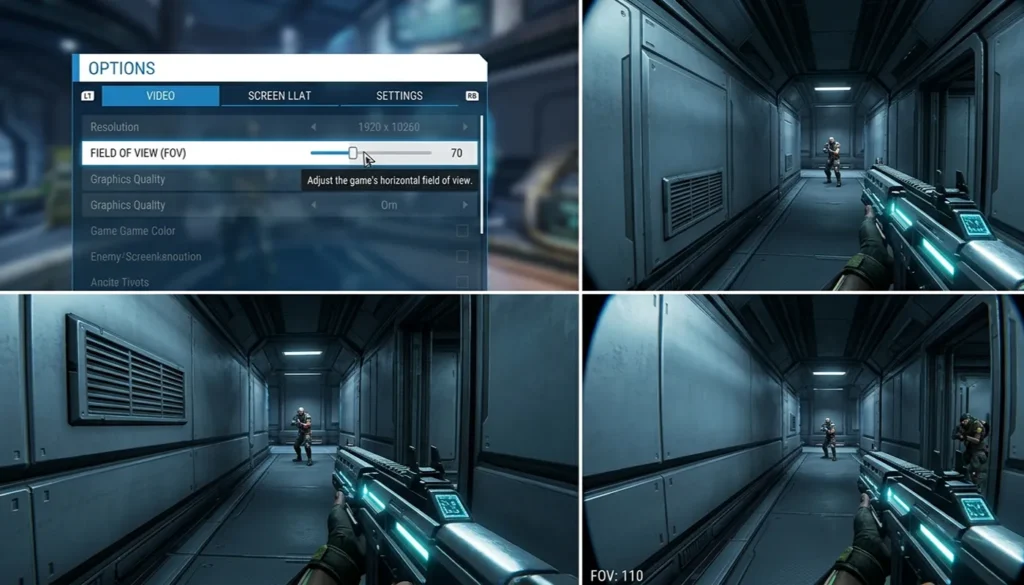
Once you understand the basics, the next step is knowing how to actually change the setting in-game. This section walks through where to find these FOV settings and what to expect from popular titles.
How to Set Your Field of View
To effectively set your field of view (FOV), most PC games offer an in-game slider within their graphic or display settings. This slider allows for incremental adjustments, typically measured in degrees.
Optimal viewing depends on your monitor’s aspect ratio and your distance from the screen. Most players set FOV once, dial it in with a FOV calculator, and rarely touch it again after that.
| FOV Setting | Benefit |
|---|---|
| Lower FOV | More focused experience, ideal for precision (e.g., simulations). |
| Higher FOV | Wider field of vision, enhances peripheral awareness (e.g., fast-paced titles). |
If a game lacks an in-game FOV option, third-party tools or configuration file edits may be necessary. Always aim for an FOV that feels natural and reduces eye strain, balancing between seeing more of the game world and maintaining a comfortable visual experience.
Common FOV Settings for Popular Games
The ideal FOV setting often varies greatly between popular PC games due to differing gameplay mechanics and design philosophies. Understanding these common settings can serve as a guide to adjust your FOV, though personal preference and your specific monitor setup remain paramount for the best gaming experience.
| Game Genre | Common Horizontal FOV Range |
|---|---|
| First-Person Shooters | 90 to 110 degrees |
| Role-Playing Games / Open-World Titles | Slightly lower FOV (for cinematic immersion) |
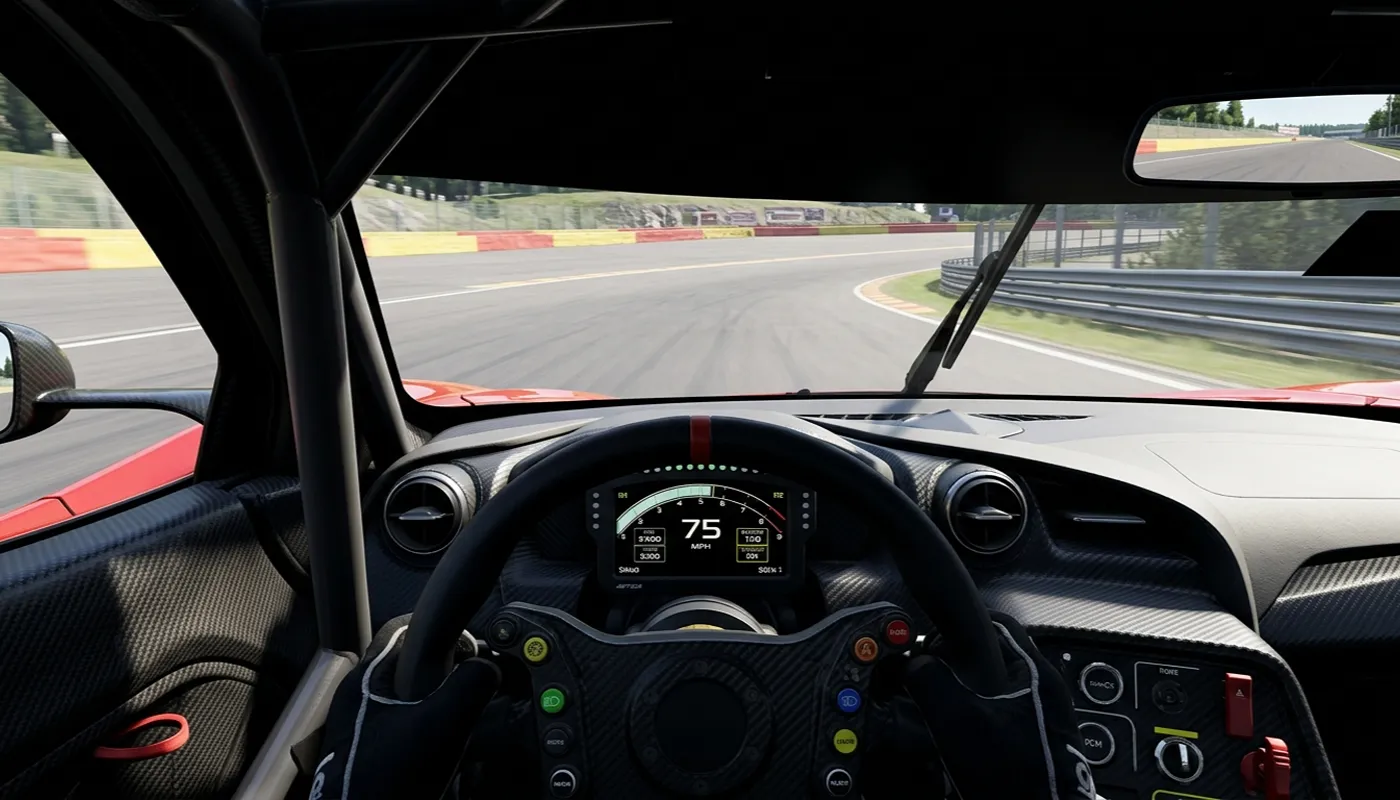
| Flight Simulators / Racing Games (Cockpit View) | Wider FOV (up to 120 degrees on ultrawide/triple monitors) |
For exact recommended values per title, see our FOV settings by game guide.
Impact of FOV on Graphics and Performance
The chosen FOV setting significantly impacts both the graphics rendering and overall performance of your PC. A higher FOV requires the system to render more of the game world on your screen, which can lead to a decrease in frame rate, especially on less powerful hardware.
Conversely, a lower FOV reduces the amount of visual information the graphics card needs to process, potentially boosting performance. A wider FOV simply asks more of your GPU every frame, since it has to draw extra geometry at the edges of the screen.
While a wider FOV can offer a more immersive gaming experience, it’s a trade-off that demands careful consideration of your PC’s capabilities and monitor’s resolution. Many players use an online FOV calculator to find the optimal horizontal or vertical FOV for their specific setup, aiming for a balance that provides a wider field of view without compromising visual fidelity or smooth gameplay.
Experimenting with your FOV setting is essential to find that sweet spot.
Factors Influencing FOV
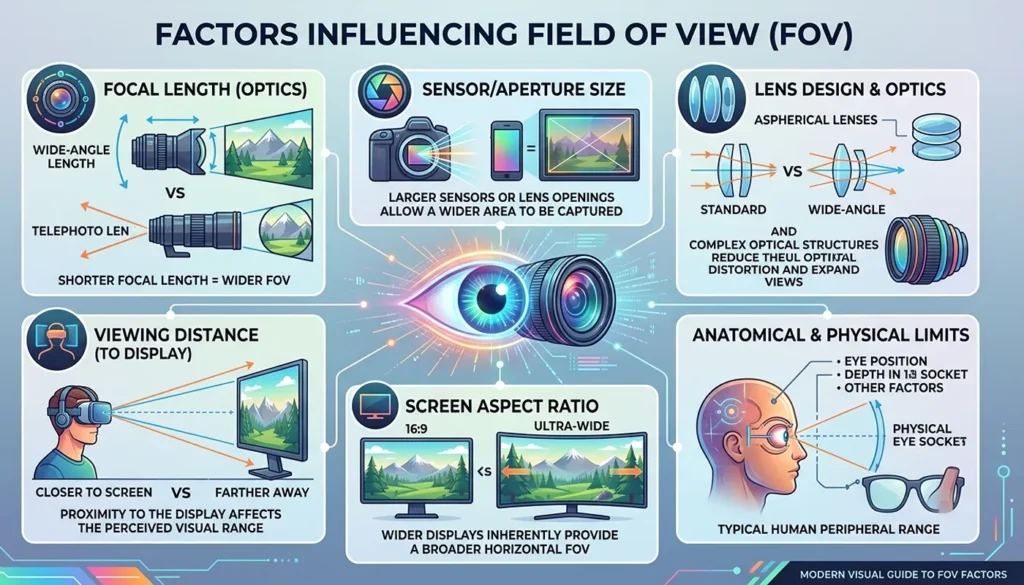
Your ideal FOV isn’t a fixed number, since it depends on your hardware and how you sit at your desk. This section covers the biggest factors that shape the right FOV settings for your setup, including triple-monitor rigs.
Aspect Ratio and Its Role in FOV
The aspect ratio of your monitor plays a crucial role in determining the optimal FOV setting for your PC gaming experience. Aspect ratio refers to the proportional relationship between the width and height of your screen, commonly expressed as width: height (e.g., 16:9, 21:9).
Many PC games, by default, assume a 16:9 aspect ratio, meaning that if you have an ultrawide monitor with a 21:9 aspect ratio, the game might stretch or crop the image if the FOV is not properly adjusted. Increasing the FOV slightly can help compensate for that stretched or cropped image.
A horizontal FOV that feels natural on a 16:9 screen might appear too zoomed in or too wide on a 21:9 setup, necessitating a specific FOV setting to maintain correct visual proportions. Utilizing an FOV calculator can help you accurately set your field of view based on your monitor’s aspect ratio, ensuring that the game world renders as intended and offers a truly immersive gaming experience.
Our full FOV calculation breakdown walks through the exact math.
Monitor Size and FOV Optimization
The physical size of your monitor and your distance from the screen are significant factors in optimizing your FOV setting. A larger monitor, especially when combined with a closer viewing distance, can benefit from a wider FOV to encompass more of your natural peripheral vision.
Conversely, a smaller monitor at a greater distance might feel more comfortable with a lower FOV, as a very high FOV could make objects appear too small or distorted. A larger FOV can also introduce distortion near the screen edges if it’s pushed too far past what your setup actually needs.
For players with a triple monitor setup, the FOV setting is even more critical; a very wide FOV, often around 110-120 degrees horizontal, is typically required to create a seamless and realistic panoramic view across all screens, truly enhancing the immersive gaming experience. It’s not just about what looks good, but what feels natural to your eyes, preventing strain and motion sickness.
Experimentation with the in-game FOV slider is key to finding the perfect balance for your specific monitor setup.
See our single vs triple screen FOV comparison for more on multi-monitor setups.
Adjusting FOV for Different Game Genres
Optimizing your FOV setting is highly dependent on the specific game genre you are playing, as different types of games benefit from varying fields of view. The best FOV setting is ultimately a matter of personal preference and the specific demands of the video game.
| Game Genre | Preferred FOV & Rationale |
|---|---|
| Fast-Paced First-Person Shooters | Higher FOV (90-110 degrees horizontal) for wider vision, improved situational awareness, and competitive advantage. |
| Slower-Paced Role-Playing Games / Simulation Games | Lower FOV for a more zoomed-in, cinematic, and immersive perspective, enhancing environmental details. |
| Games with Cockpit View (e.g., Racing/Flight Simulators) | Wider FOV (sometimes up to 120 degrees horizontal on ultrawide monitors) to replicate confined space and surrounding environment, improving depth perception. |
Simulating Different FOVs
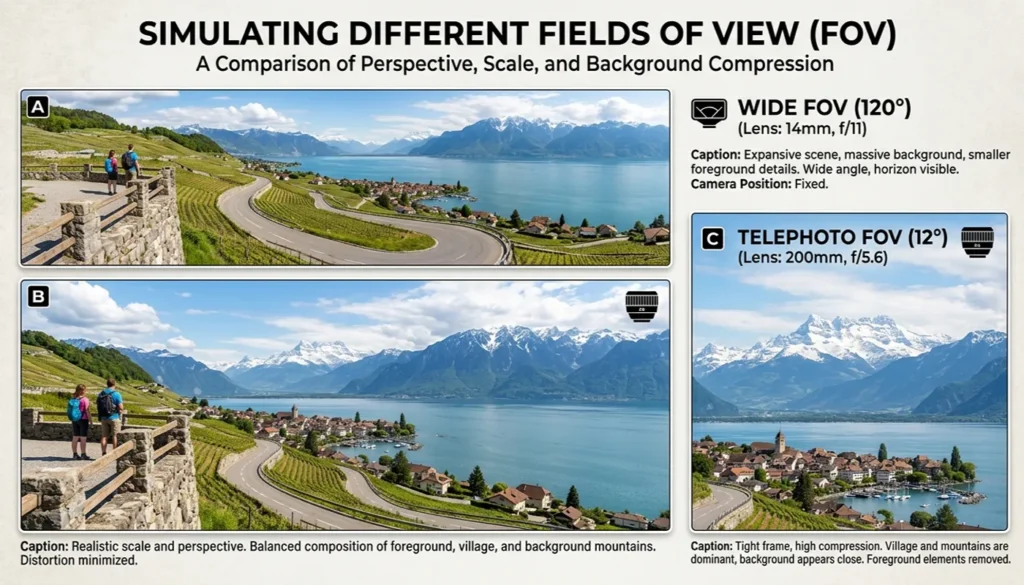
Before locking in a number, it helps to see how different FOV values actually look and feel. This section covers the tools and concepts that make that possible.
Using Tools to Simulate FOV Changes
To truly grasp the impact of different FOV settings, various tools are available that allow PC gamers to simulate and preview how changes to the field of view will affect their gaming experience. Many online FOV calculators are invaluable resources, enabling players to input their monitor’s aspect ratio, diagonal screen size, and distance from their eyes to the screen to recommend an optimal horizontal FOV or vertical FOV.
These calculators often provide a visual representation, demonstrating the difference between a low FOV and a higher FOV. That mapping of real-world degrees to on-screen pixels is exactly what a good FOV calculator handles automatically.
Furthermore, some third-party software and game-specific mods can help adjust the FOV in games that lack an in-game slider, offering more granular control to set your field of view beyond the developer’s default. Experimenting with these tools can help players understand how to effectively change the FOV for a more personalized and comfortable visual experience across various PC games.
Understanding the FOV Curve
The concept of the FOV curve is crucial for understanding how the field of view relates to perceived speed and distortion in a video game. As you adjust your FOV setting, particularly when moving from a lower FOV to a wider FOV, the “curve” of the perspective changes.
A very low FOV tends to flatten the perspective, making objects appear closer and enhancing a “zoomed-in” effect, which can be useful for precision aiming but might feel restrictive. Very few games let you push anywhere close to 180 degrees, since the image would warp far too much to be usable.
Conversely, a very high FOV, while providing a wider field of vision, can introduce a fish-eye lens effect, causing significant distortion at the edges of the screen and making objects appear farther away and the sense of speed greater. The main drawback of pushing FOV too high is exactly this fish-eye distortion at the screen edges.
Understanding this FOV curve helps players find a balance where the visual experience feels natural and immersive, reducing strain and optimizing the graphic setting for their specific monitor setup. It’s about more than just seeing more; it’s about how the game world renders on your screen.
Comparing FOV in Various Video Games
Comparing FOV settings across various video games highlights the diverse approaches developers take and the resulting impact on the gaming experience. While a first-person shooter might benefit from a wider horizontal FOV, often around 110 degrees, to enhance peripheral awareness and competitive advantage, a third-person adventure game might opt for a lower FOV to emphasize character models and cinematic presentation.
Racing or flight simulators, particularly those supporting a triple monitor setup or ultrawide monitors, can leverage an extremely wide FOV, sometimes up to 120 horizontal, to create an incredibly immersive cockpit view that accurately represents the sense of speed and surrounding environment. Console games typically have a fixed or limited FOV setting, whereas PC games generally offer more flexibility to adjust the FOV to personal preference.
This comparison underscores the importance of customizing your FOV setting based on the specific genre and demands of each video game to optimize your overall gaming setup. Community resources like PCGamingWiki catalog the exact FOV commands and config tweaks for hundreds of individual titles.
Our FOV FAQ is a good next stop if you still have questions about your specific setup.